Bulk schedule social media posts from a CSV


If social media is a real channel for you, scheduling posts one at a time stops working fast. You batch a month of content in a sheet, and then you're stuck copying each row into a composer by hand. Bulk CSV upload closes that gap: fill in a spreadsheet, upload it once, and schedule up to 100 posts in a single action.
Here's exactly how it works in Schedulin — and how to use it to move a queue over from another tool.
What you need
- A CSV with one row per post.
- At least one connected channel and an active plan.
That's it. There's no separate importer to install and no monthly post cap to work around.
The CSV format
Your file needs a header row. Column names are case-insensitive.
| Column | Required | What goes in it |
| --- | --- | --- |
| content | Yes | The post text (up to 5,000 characters). Quote it if it contains commas. |
| scheduled_at | Yes | A time — either ISO-8601 (2026-09-16T14:30:00Z) or plain YYYY-MM-DD HH:mm (2026-09-16 14:30). |
| platforms | Yes | Comma-separated platform slugs: twitter, bluesky, linkedin, instagram, tiktok, facebook, youtube, pinterest, threads, mastodon. |
| media_urls | No | Comma-separated public image/video URLs, imported into your library. |
| tags | No | Comma-separated tag names that already exist in your workspace. |
A plain YYYY-MM-DD HH:mm time is read in each account's own timezone — so 09:00 goes out at 9am local for every channel it targets. Want an exact instant everywhere? Use an ISO time with an offset or Z.
Here's a two-row example:
content,scheduled_at,platforms,media_urls,tags
"Launch day is here 🚀",2026-09-15 09:00,"twitter,bluesky",,launch
"Behind the scenes of the build",2026-09-16T14:30:00Z,linkedin,https://cdn.example.com/bts.jpg,"launch,promo"
Upload, preview, schedule
Open Posts, click Bulk upload, and drop in your CSV. Schedulin parses every row and shows a preview — and this is the part that saves you: it validates each row before anything is scheduled.
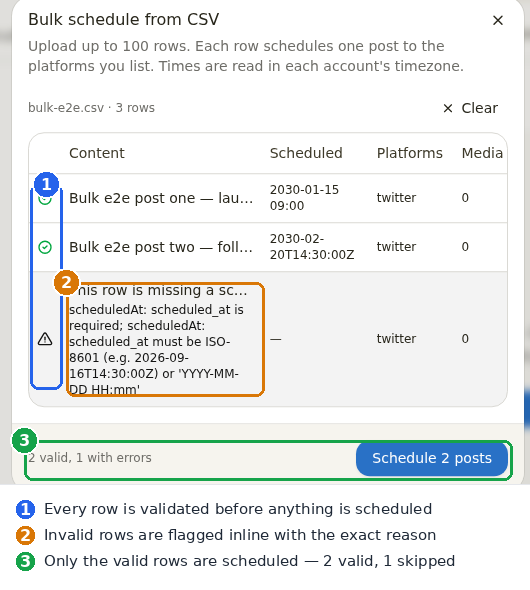
Green means ready; a warning means the row has a problem, flagged inline with the reason (a missing time, an unknown platform, a caption over the limit). Fix and re-upload, or just let the valid rows through — the footer tells you how many will go.
Click Schedule, and you get a per-row result:
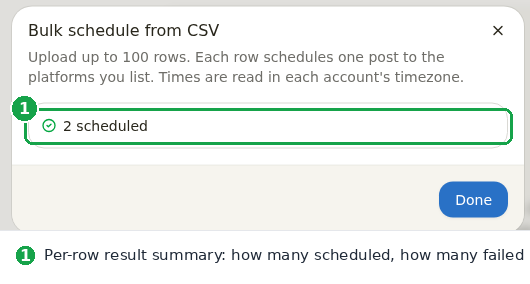
Rows are processed independently, so one bad row never blocks the rest. You'll see something like "87 scheduled, 3 failed," with the reason for each miss — no silent failures to chase down later.
Migrating a queue from another tool
Bulk upload is the fastest way to switch schedulers without abandoning your planned content. Export your queue, map the columns to the format above, and upload.
This is especially relevant if you're coming from Hypefury, which dropped X (Twitter) in 2026. Schedulin still publishes to X — threads, communities, polls, and quote posts — so you can bring your whole queue over and keep posting where your audience is. Full walkthrough: migrating from another scheduler.
Where it fits
Bulk upload is one way to fill your calendar; the content calendar and scheduling queue are where you manage everything once it's in. If you're publishing the same content across networks, bulk upload pairs naturally with posting to multiple platforms at once.
Batch a month in a sheet, upload it once, and get back to making the content.