Stop asking clients for their passwords: introducing client connect links

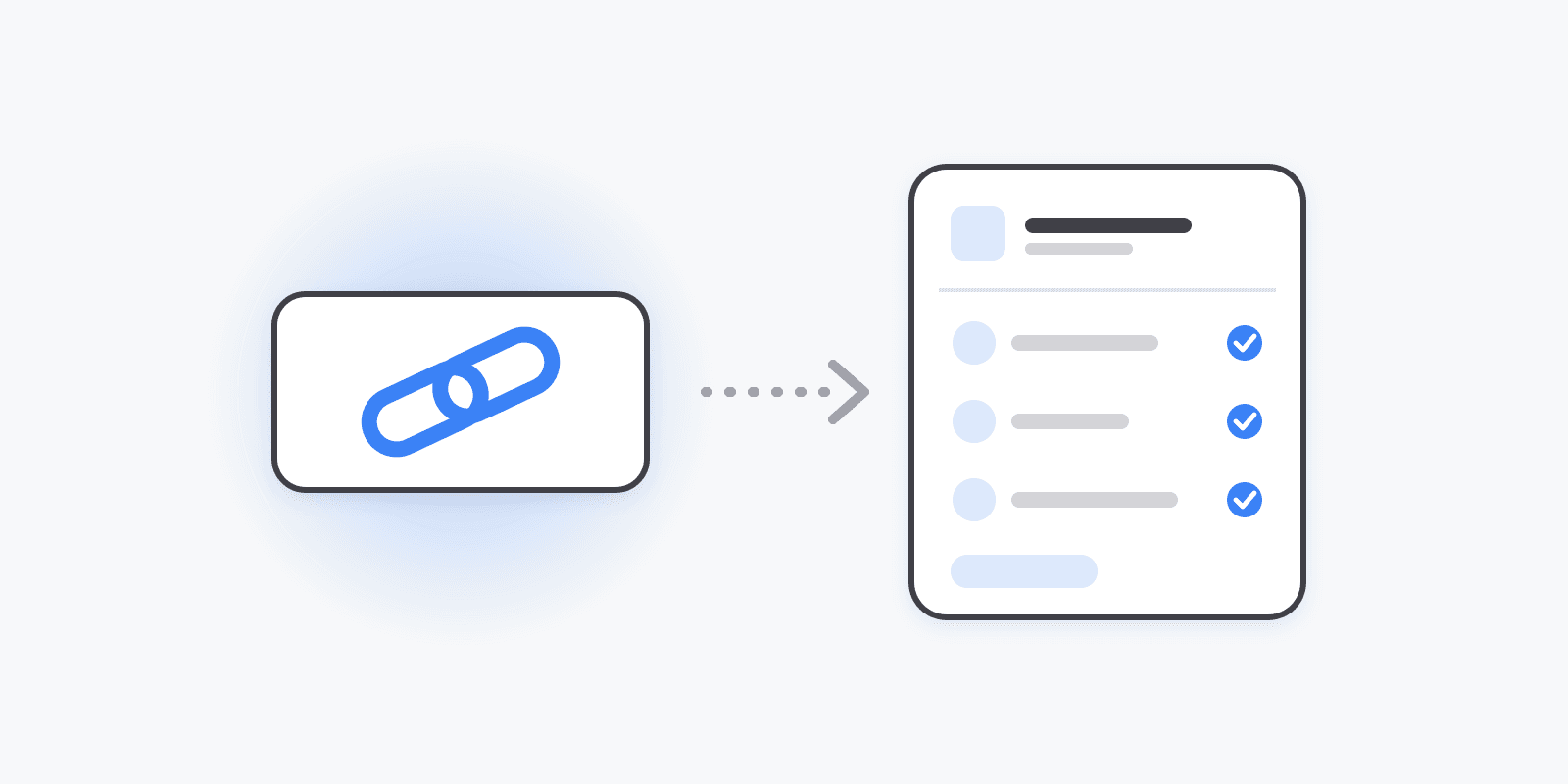
If you manage social media for other people, you know the first week of every new client. You need their Instagram, their Facebook Page, their TikTok, maybe their LinkedIn. So you ask for passwords. Then a 2FA code arrives on their phone while they're in a meeting. Then you book a call to share screens and click through it together. Then one account turns out to belong to a former employee.
None of that is the work you were hired for. So we built clients and connect links.
How it works
Under Settings → Clients, create a client with a name and, if you like, your own reference ID. Then you have two ways to connect their channels:
- Connect channel — if you already have access, sign in to the platform yourself and the account lands under that client.
- Copy connect link — send the link to your client. They open it, pick a platform, and sign in on that platform's own login screen. The account connects to your workspace under their name.
Your client doesn't create a Schedulin account or sign in to Schedulin. They never send you a password or a code. The page shows your workspace's name and logo, so they know who's asking, and they can revoke access from each platform's settings whenever they want.
Links copied from the app work for 7 days. Copy a new one whenever you need it.
Posting for a client
Clients keep channels organized; channel groups are how you post to them. Add a client's channels to a group under Settings → Channel Groups, then pick the group in the composer to select all of them at once. Everything else works as before: the calendar, the queue, analytics, and reports.
If a channel ends up under the wrong client, move it from the same page. Deleting a client doesn't disconnect anything. Its channels move to Unassigned, and its links stop working.
Which platforms
Connect links cover every platform that signs in through the platform itself, plus Bluesky and the platforms that connect with a token or app password, like Telegram, Mastodon, DEV.to, Hashnode, and WordPress. The one exception is Farcaster.
For SaaS builders: the same thing, from the API
Some of you aren't agencies at all. You're building a product where your own users connect their social accounts and your app posts for them. That's the same problem, and the same feature.
In the public API, clients are called profiles. Create one per user, tagged with your own user ID:
curl -X POST https://api.schedulin.app/v0/profiles \
  -H "x-api-key: $SCHEDULIN_API_KEY" \
  -H "Content-Type: application/json" \
  -d '{ "name": "Jane Doe", "externalId": "user_42" }'
Then create a connect link for that user:
curl -X POST https://api.schedulin.app/v0/profiles/user_42/connect-link \
  -H "x-api-key: $SCHEDULIN_API_KEY" \
  -H "Content-Type: application/json" \
  -d '{ "platforms": ["instagram", "tiktok"], "redirectUrl": "https://yourapp.com/settings/social" }'
You get back a url and an expiresAt. Send the user to the URL. When they've connected their accounts, the Done button takes them back to your redirectUrl. Look up their accounts with GET /v0/social-accounts?profileId=user_42 and post to them with POST /v0/posts, like any other channel.
A few details:
platformslimits the link to the platforms your product supports. Leave it out to offer all of them.expiresInHoursdefaults to 72 and goes up to 168 (7 days).- You can use your
externalIdanywhere a profile ID is expected, so you don't need to store Schedulin IDs. PUT /v0/social-accounts/{id}with aprofileIdmoves an account between profiles.
The full list of endpoints is on the developers page and in the API guide.
Plans and limits
Clients and connect links are included on every paid plan: Starter, Creator, Pro, and Bulk. There's no separate agency tier.
Channels your clients connect count toward your workspace's channel limit, the same as channels you connect yourself. Limits belong to the workspace and are shared by everyone in it.
And every plan includes unlimited team members. Plans are priced by connected channels only, so bringing in another strategist or freelancer doesn't change your bill.
A link stops working when it expires, when you delete the client, when the teammate who created it leaves your workspace, or when the workspace no longer has an active plan.
Get started
Open Settings → Clients, create your first client, and copy a link. The feature page has the details, and the help article walks through every step, including what to do if a link has expired.