How to use Manus as your social media manager (2026 guide)


Most people use AI for social media the same way: ask for a caption, copy it, paste it into a scheduler, pick a time, repeat for every platform. The AI writes; you do the busywork.
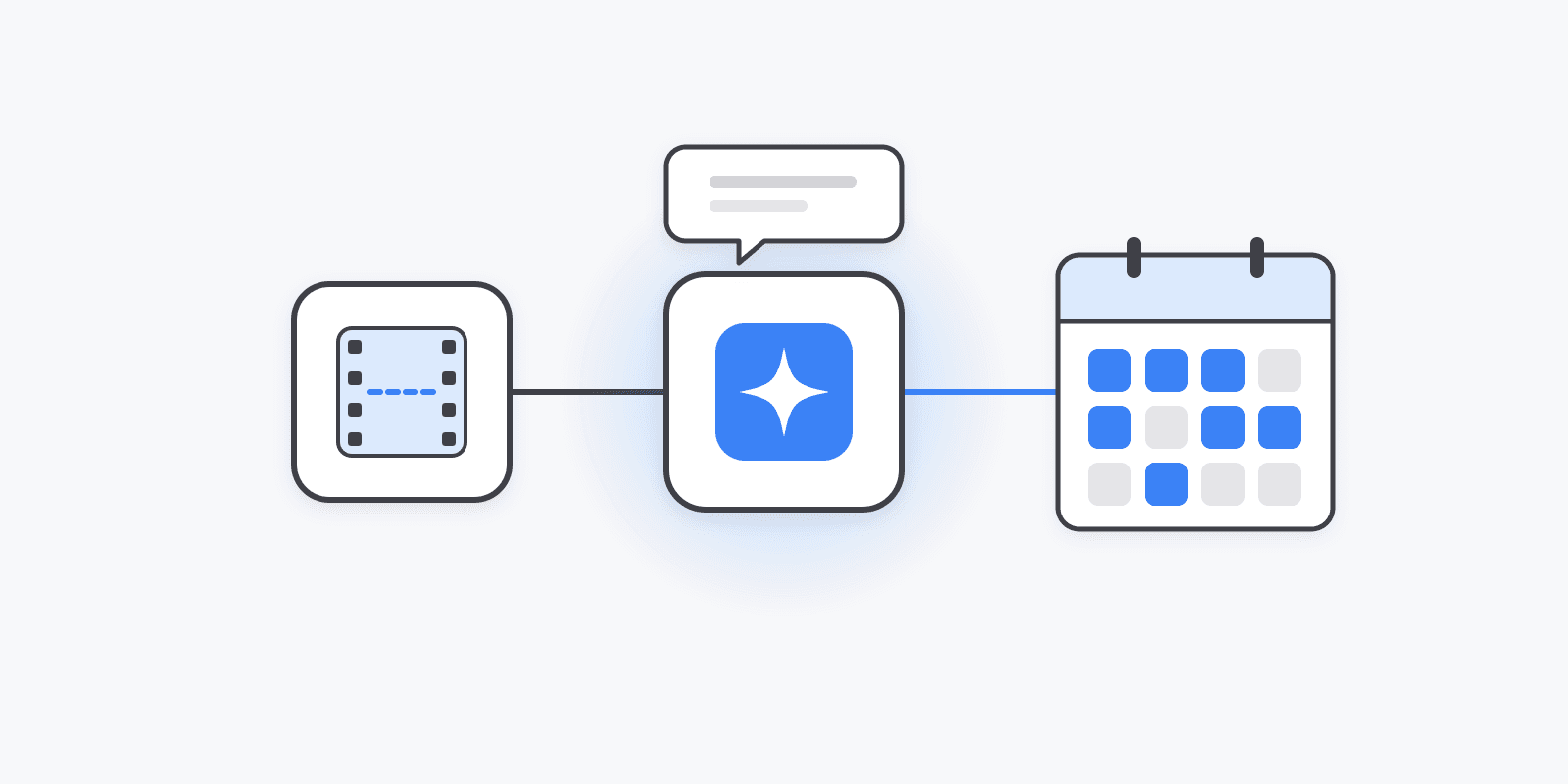
Manus is built for the opposite. It's an agent — you give it a goal, and it plans the steps, browses the web, reads files, and works through the job on its own. Point that at your social media and the busywork is exactly what it's good at. The only missing piece is a way to actually post, and that's what a scheduler connector adds.
This guide covers the two-minute setup and six workflows worth handing over.
What Manus can do once it's connected
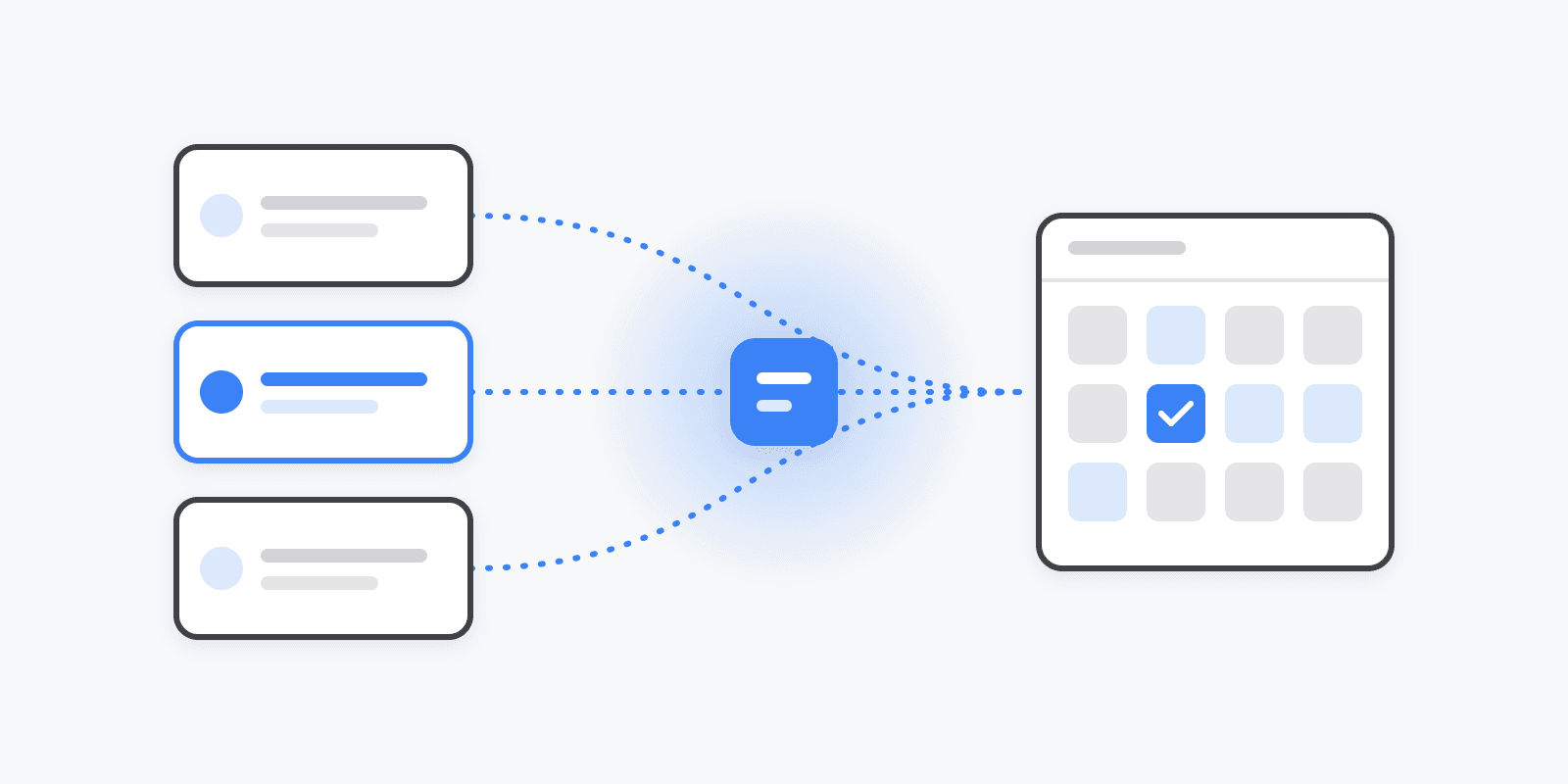
Manus connects to outside tools through MCP (Model Context Protocol), the same open standard ChatGPT and Claude use for connectors. When you add Schedulin's MCP server, Manus gets a set of tools it can call on its own:
- List your channels — every account you've connected in Schedulin
- Check platform rules — caption limits, media specs, required fields like Pinterest boards or TikTok creator settings
- Create posts — publish now, schedule for a time, take the next queue slot, or save as a draft
- Attach media — from any public URL, or generate an image
- Manage the calendar — list, reschedule, edit, tag, or delete posts
- Read analytics — overview, per-platform, and per-post numbers, plus your top posts
Manus decides which tools to call. You just describe the outcome.
Setup (about two minutes)
-
Connect your socials in Schedulin. Sign up and link the accounts you want Manus to post to. Manus can only post to accounts that are already connected.
-
Add the connector in Manus. Open Connectors, click Create, and choose Add MCP by URL. Name it Schedulin and paste:
https://mcp.schedulin.app/mcpIf your Manus version shows Custom MCP instead, pick that and set the transport to HTTP.
-
Approve access. The first time Manus uses the connector, it opens a Schedulin sign-in and consent screen. Approve it, and you're done.
Test it with a quick task: "List my connected Schedulin channels." If Manus comes back with your accounts, everything works. Full step-by-step with screenshots of each field is on the Manus integration page.
Six workflows worth handing over
1. Research, then post
This is where Manus beats a chat assistant. It can go read the web first, then write.
"Find the three most discussed stories in B2B SaaS this week. For each, write a short take for LinkedIn and a punchier version for X. Save all six as drafts in Schedulin, tagged 'weekly-news'."
You get six drafts waiting in your calendar, each one fitted to its platform's length limits. You edit, approve, and you're done for the week.
2. Turn one long piece into a week of posts
"Read [link to your blog post]. Turn it into: a 5-post Threads series, a LinkedIn post, two X posts, and an Instagram caption. Put them in my queue across the next week, one channel per day."
Manus reads the article, splits it into angles, checks each platform's rules, and drops them into your queue's open slots. One long piece becomes a week of posts without you rewriting it five times. (More on this approach in one post, ten outputs.)
3. Fill the gaps in your calendar
"Look at my Schedulin queue for next week. Find every empty slot and fill it with a post that fits that channel. Use my last month of top-performing posts as a style guide."
Manus pulls your queue, pulls your top posts for tone, and writes to fit. It's the "I forgot to plan this week" fix.
4. A weekly performance report
"Pull last week's analytics for every channel. Give me a short report: total reach, the top 3 posts by engagement, and what they had in common. Then draft one follow-up post to the best performer."
Manus can write the report as a document, so you get something you can forward to a client or team, plus a draft that builds on what worked.
5. Launch day across every network
"We're launching v2 tomorrow at 9am ET. Here's the changelog: [paste]. Write a launch post for each connected channel, matched to that platform's style and limits. Schedule them all for 9am ET. Generate one hero image and attach it to the Instagram and LinkedIn posts."
One task, every channel, one consistent message — scheduled for the same minute.
6. Clean up a messy calendar
"Show me everything scheduled in November. Flag any posts that are duplicates or that land on the same channel within 2 hours of each other, and move the second one to the next free slot."
The boring calendar admin nobody wants to do by hand.
Run it on a schedule with Manus Automations
Manus has Automations, which run a task on a schedule. Combine that with the Schedulin connector and the workflows above become recurring:
- Every Monday morning: research the week's news and save drafts for review
- Every Friday: send the weekly performance report
- First of the month: check the coming month's queue and fill empty slots
For anything that runs unattended, use drafts. Tell the automation to save posts as drafts instead of scheduling them, then review and approve in Schedulin. The agent does the work; you keep the final say.
Tips for better results
Say "drafts" when you want to review. Manus does what you ask. "Schedule" schedules; "publish" publishes; "save as drafts" waits for you. Be explicit.
Let it check platform rules first. Every network has different limits — 280 characters on X, 500 on Threads, video specs on TikTok. Manus can ask Schedulin for these before it writes. If a post fails, tell it to "check the platform requirements and retry."
Give it a style reference. Paste three posts you liked, or tell it to read your top-performing posts in Schedulin first. Output gets much closer to your voice.
Batch the work. One task that writes a week of posts uses fewer credits than seven tasks that each write one.
Use tags. Ask Manus to tag posts by campaign (launch-v2, weekly-news). It makes reporting and cleanup much easier later.
Manus or a chat assistant?
The same connector works in ChatGPT, Claude, and other MCP clients. The short version: use a chat assistant for quick, one-off posts you're writing together; use Manus when the job has several steps — research, write, schedule, report — and you'd rather hand it off. We compared them in detail in Manus vs ChatGPT vs Claude for social media.
Get started
Connect Manus to Schedulin — the MCP server is included on every paid plan, starting at $5/month with a 7-day free trial. Connect your socials, add the connector, and give Manus its first task.